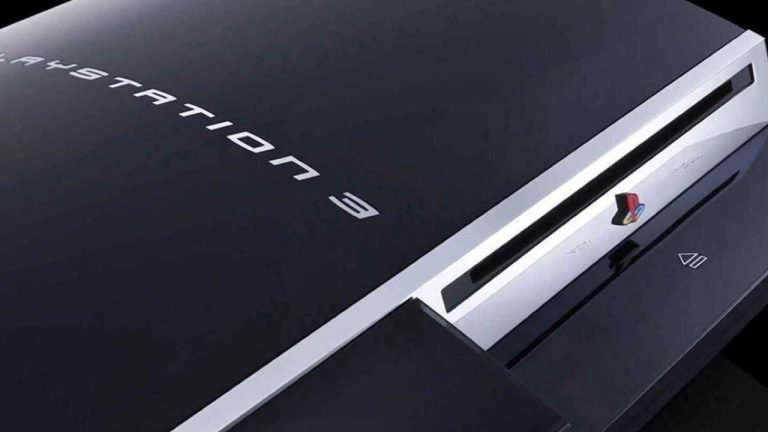
RPCS3 permite rodar discos físicos de PS3 direto no PC
Understanding RPCS3 and Its New Feature for Physical Discs
RPCS3, the acclaimed PlayStation 3 emulator, has taken a monumental step for physical media enthusiasts. With its latest update, users can now play original PS3 discs directly on their PCs using a compatible Blu-ray drive. This significant enhancement was shared by the RPCS3 team via their official channels.
For fans of nerd culture, this development represents more than just an authentication of the physical media; it symbolizes a resistance against the increasing digitalization of games. As console manufacturers shift towards downloads and cloud gaming, the demand for preserving the experience of physical ownership becomes ever more relevant.
How Does It Work?
The procedure to play PS3 discs on RPCS3 is notably straightforward. After connecting a supported Blu-ray drive to a PC, the game can be accessed as if it were on a console. However, the user must first manually input the decryption key to read the disc. Initially, this involves placing the key in a designated folder within the emulator. Once this step is completed, the emulator will automatically decrypt content with each subsequent insertion of the disc.
This “plug and play” system simplifies access significantly, yet requires some technical understanding for first-time users. Fortunately, the RPCS3 website includes a detailed guide on compatible drives and system requirements, easing the learning curve.
The Expansive Compatibility
While initially exclusive to Windows, RPCS3 has expanded its functionality to support Linux, macOS, and FreeBSD, thus enhancing the user base. This opens doors for gamers who prefer various operating systems to still enjoy their cherished PS3 titles.
Comparative Analysis: Physical vs. Digital Ownership
| Aspect | Physical Discs | Digital Downloads |
|---|---|---|
| Ownership | Complete ownership with tangible media | License only; dependent on service providers |
| Access | Immediate access through the disc | Requires download and internet access |
| Longevity | Durable with care; less prone to obsolescence | Subject to service availability |
| Preservation | Easier to preserve and collect | Risk of losing access if accounts are deactivated |
Benefits of Using RPCS3 for Playing Physical Discs
- Preservation of Games: Emulation allows for the preservation of games that may fade with time.
- Enhanced Compatibility: Access to a wide range of titles without needing the original console.
- Community Support: Frequent updates and a strong community drive continuous improvements.
- Accessibility: The ability to play across different operating systems widens the audience.
Limitations and Considerations
- Initial setup can be complex for novices.
- Some titles may not run perfectly; ongoing development is necessary.
- Requires knowledge of file placement and technical aspects of emulation.
Common Errors
- Improperly downloading or installing firmware updates.
- Selecting incompatible Blu-ray drives or models.
- Failure to place decryption keys in the correct folders.
Best Practices for Enjoying RPCS3
- Consult the RPCS3 website for the latest guides and updates.
- Engage with community forums for tips and troubleshooting.
- Make regular backups of your games and settings.
Future Trends in Gaming and Emulation
The popularity of physical discs is likely to persist as manufacturers explore models reliant solely on digital formats. This ongoing transition has prompted discussions around game ownership, preservation, and consumer rights. The ability of RPCS3 to facilitate the use of physical media will likely encourage other developers to consider similar paths, ensuring that games are not lost to time.
RPCS3: Your Gateway to PS3 Discs on PC
RPCS3’s ability to read and play PS3 discs on a PC represents a significant boon for fans of nerd culture, especially amidst the gradual shift towards purely digital environments. By advocating for the relevance of physical copies, RPCS3 not only enriches the gaming experience but also encourages dialogue about ownership in the gaming industry.
FAQ
1. What do I need to play PS3 discs on RPCS3?
You will need a compatible Blu-ray drive, a computer with RPCS3 installed, and the decryption key for the game disc. A detailed guide on compatible drives can be found on the RPCS3 website.
2. Is it difficult to set up RPCS3 for disc usage?
The initial setup can be a bit complex, especially for new users. You will need to understand how to input the decryption key and configure the emulator settings, but the RPCS3 website provides helpful guidelines.
3. Can I play PS3 games without a physical disc?
Yes, RPCS3 can also run PS3 games from ISO files. However, using physical discs adds a layer of authenticity, especially for collectors.
4. What if my game does not run smoothly?
Some PS3 titles may not be fully compatible with RPCS3. Regular updates improve performance, so ensure you keep the emulator and its files up to date.
5. Is RPCS3 legal to use?
RPCS3 itself is legal, as it does not distribute any PlayStation software. However, you need to own the games you play on the emulator legally.
6. Will RPCS3 work on other operating systems?
Yes, RPCS3 now supports Linux, macOS, and FreeBSD, in addition to Windows. This broadens access for gamers who prefer different platforms.
“,
“fechamento_estrategico”: “As the gaming landscape continues to evolve, tools like RPCS3 exemplify how the community can innovate amidst industry trends. The importance of preserving physical copies cannot be overstated, especially for those who cherish the nostalgia of game collections. RPCS3 serves not only as an emulator but as a symbol of the enduring relevance of physical media in an increasingly digital world.”,
“focus_keyphrase”: “Nerd”,
“tags”: “RPCS3, PS3, Gaming, Emulation, Nerd Culture”
}














Post Comment